
Task Management
Table of Contents
Track the work behind a project with tasks and subtasks. Assign responsibility, record progress, and keep planned dates together on the project dashboard. See Project Management Overview for creating projects and adding members.
Create a task
- Open Projects, select your project, and find the Tasks panel on its dashboard.
- Click Create Task and enter a Title. Add a description if helpful.
- Choose a project member under Assigned to, or leave the task Unassigned. Members who belong through a project User Group can also be assigned.
- Choose a Status and optionally set a Start date and Due date. Either date can be left blank. When both are set, the due date must be on or after the start date.
- Click Create task.
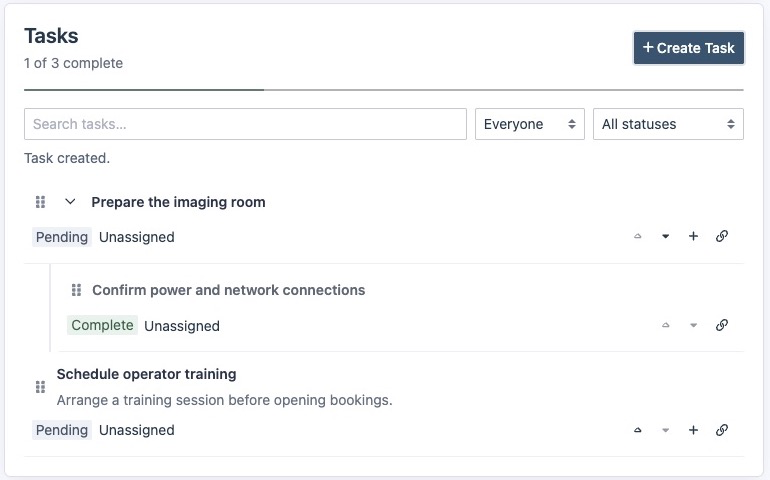
Click a task's title to view its details or edit it. You can also change its assignee or status directly from the task row when your permissions allow.
Organize subtasks
Click the + beside a task to add a subtask. Subtasks have their own assignee, status, and optional dates. One level of subtasks is supported; a subtask cannot contain another subtask.
Use the arrow beside a parent task to expand or collapse its subtasks. Drag the grip beside a task, or use its up/down controls, to reorder tasks. Subtasks can be reordered within their parent. Clear any filters before reordering.
Track progress
Choose Pending, Complete, Delayed, or Will Not Complete. Choose Custom to enter a status that fits your team's work, such as “Awaiting delivery.”
The progress indicator counts tasks and subtasks marked Complete. Tasks marked Will Not Complete are identified separately. Update the parent task's status separately from its subtasks.
Use Search tasks… to find a title, Everyone / Mine / Unassigned to filter assignments, or the status filter to narrow the list. A matching subtask keeps its parent visible for context. Click the link icon beside a task to copy a direct link; recipients still need access to the project.
Who can change tasks?
- Project administrators and users with site-wide project editing access, including Project Editors, can create, edit, assign, reorder, and delete tasks.
- Members and Contributors can update the status of tasks assigned to them. They cannot edit other task details.
- View-Only members can view tasks but cannot change them.
Site settings and project access still apply. Tasks in a deactivated project are read-only. See User Roles and Permissions for site-wide roles.
To delete a task, open its details and choose Delete task. Deleting a parent also deletes its subtasks; review the confirmation before continuing.
Assignment emails
New task assignments are grouped into an email after a 15-minute window, so several assignments do not each send an immediate message. The email links to the assigned tasks. Project-email preferences in the user's profile are respected, and assignments that are no longer relevant are omitted before sending.
Assignment emails are separate from the project's daily activity digest.