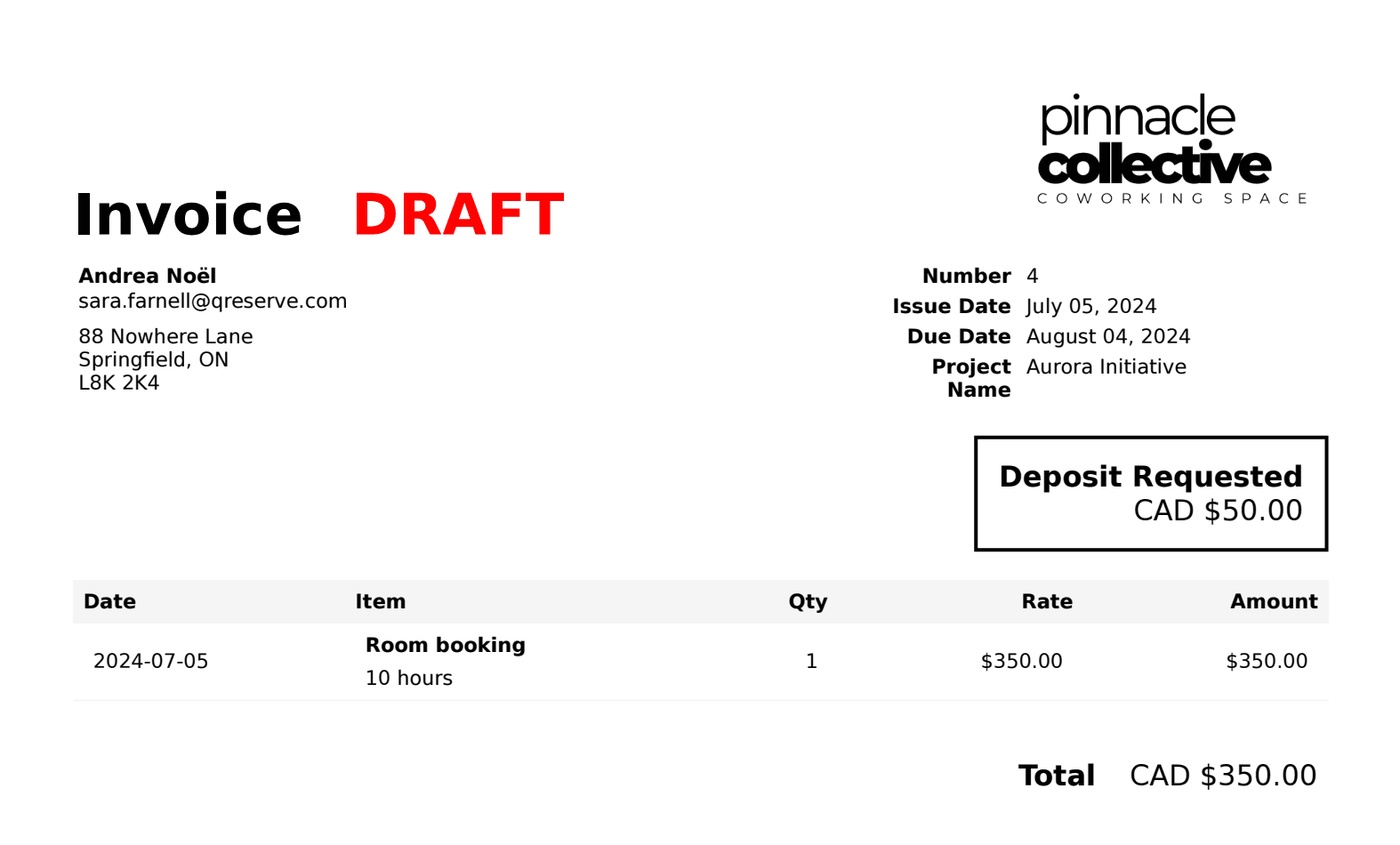
Invoice Site Settings
The Invoices module allows you to generate invoices and quotes with just a few clicks. Easily bill based on reservations, actual usage logs, service requests, or other ad-hoc items. Quotes and invoices can also be generated based on projects, users, supervisors, and resources with all items automatically gathered based on your specified time period.
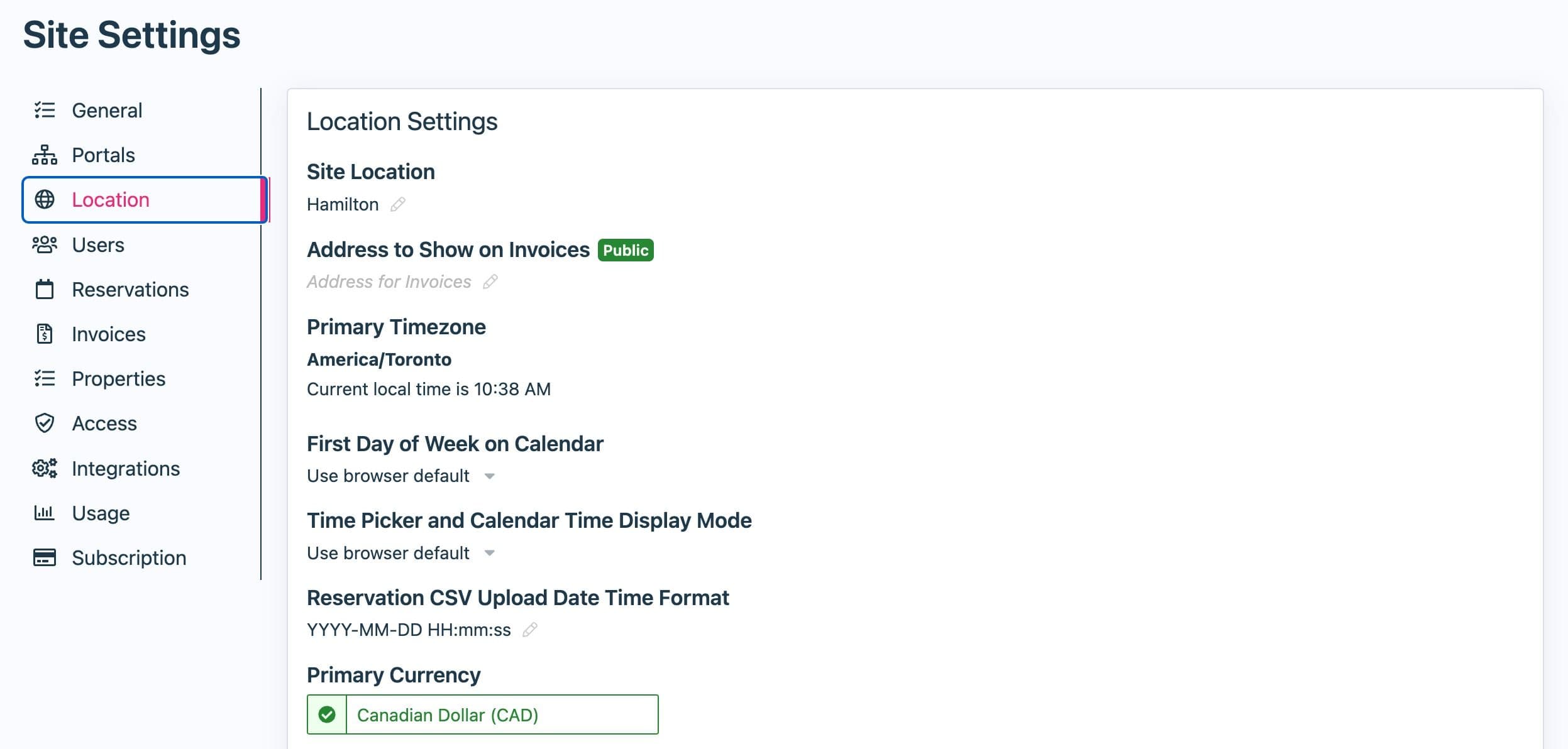
Set location to show on invoices
Before getting started, you should set a location and a default currency to appear on the invoices and quotes associated with the site. To do so, under Site Settings, click on the Location tab and fill in the fields Address to Show on Invoices and Primary Currency.
Reservations on your site will always be in your default currency; however, you can enable multi-currency support on invoices under Site Settings > Invoices. When enabled, you will have the option to change the currency of invoices and quotes.
IMPORTANT: With multiple currencies, your payment provide may not support collecting payments in all currencies. If you are unsure, please check with QReserve staff prior to performing and credit card processing on currencies other than your default currency.
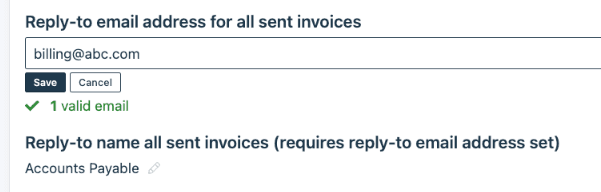
Changing the reply-to email address on invoices
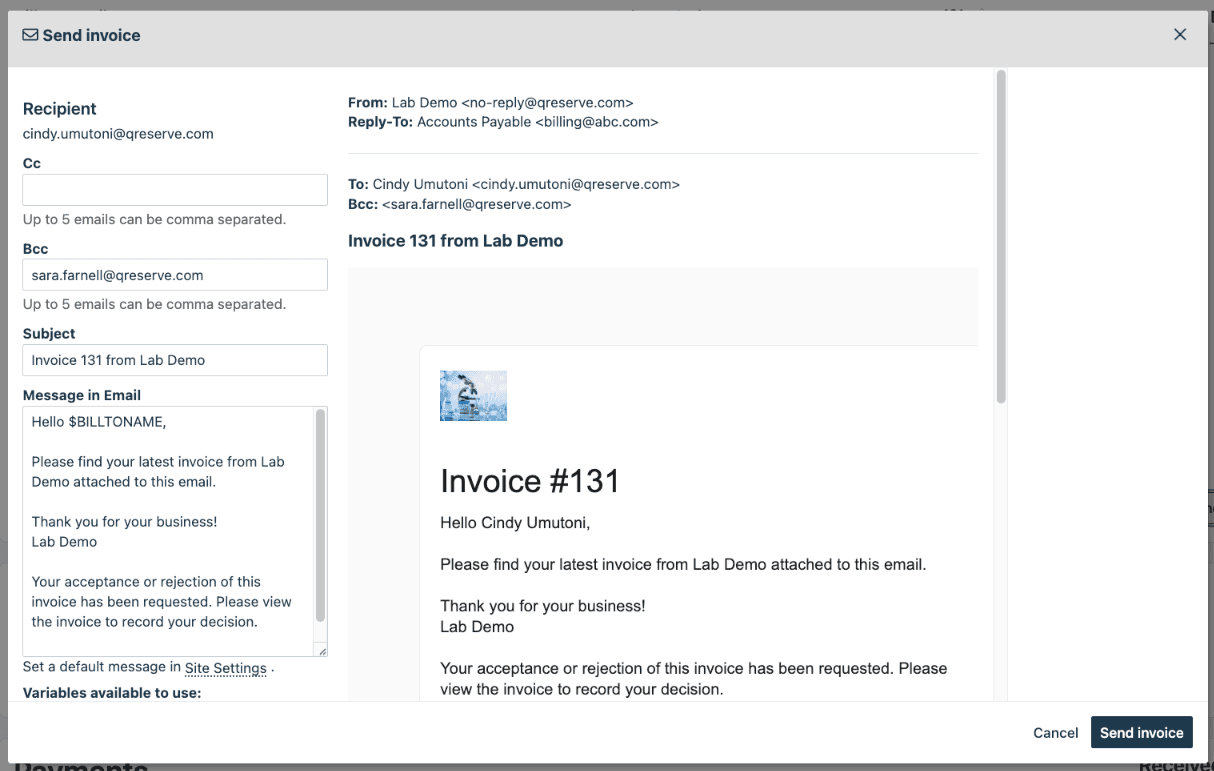
By default, when an invoice is sent manually, the reply-to address of the email is the user who sent the invoice. This new setting allows an administrator to override that to always be a predetermined value. This can be set this up in Site Settings > Invoices.
Adding Custom Fields
If you would like to add custom fields to invoices or quotes you can do this from the Site Settings under Invoices.
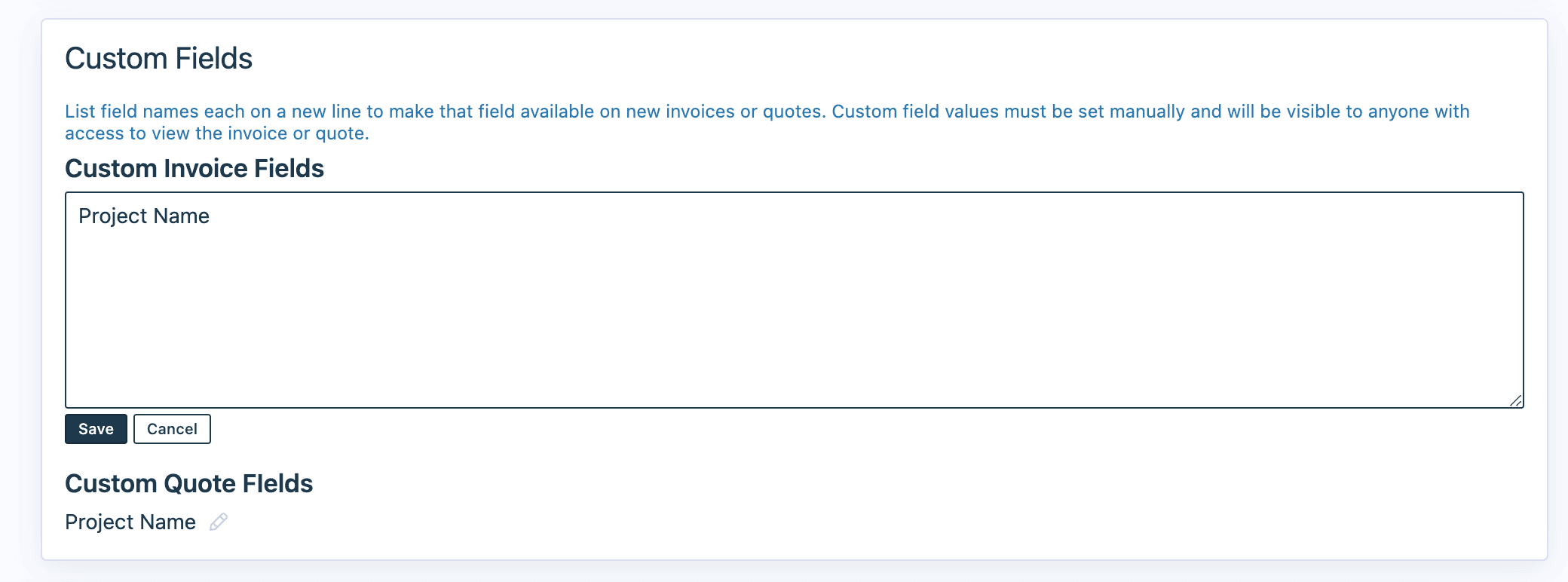
The custom field will appear on the invoice or quote in the top right.