
Payment Management
Table of Contents
- Payment permissions
- Record a manual payment
- Collect payments through QReserve
- Refund a payment
- Refund an online card payment
- Record a refund made outside QReserve
- Void a payment record
- Request a refund for review
- Choose who receives requests
Use the Payments section of an invoice to record money received, process supported refunds, or ask an authorized colleague to handle a refund. Save any invoice edits before using payment controls.
Payment permissions
Site administrators can delegate payment work using these roles:
| Role | What it allows |
|---|---|
| Invoice Editor | View, create, and edit invoices and quotes. An editor without refund permission can send a refund request. |
| Payment Creator | Record payments, charge a saved card, and pay from a customer's spending account. Requires Invoice Editor. |
| Payment Refunder | Refund and void payments, including recording manual refunds. Requires Payment Creator. |
Assign prerequisites to the same user or User Group before adding a dependent role. These roles apply across the site. A refund request does not require Payment Creator and does not grant Payment Refunder. See User Roles and Permissions for full details.
Record a manual payment
Use a manual payment to record money received outside QReserve, such as a bank transfer, cash, or cheque. It records the payment against the invoice; it does not collect money.
- Open the invoice and click Save Invoice if there are unsaved changes.
- In Payments, click Record Manual Payment.
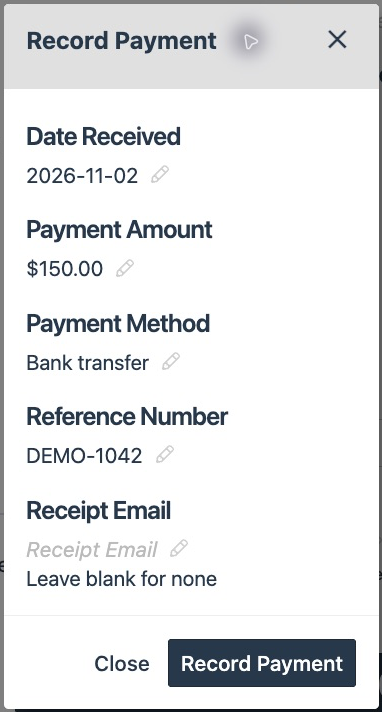
- Set Date Received, enter a positive Payment Amount, and fill in Payment Method and Reference Number as appropriate. Use the pencil beside a field to edit it and save that field.
- Enter a Receipt Email if a receipt should be sent, or leave it blank for none.
- Click Record Payment, review the amount and receipt destination, and confirm.
The payment appears in the invoice's payment history and updates the received total. You can record a partial payment and add later payments as they arrive.
Collect payments through QReserve
Available controls depend on the site's payment processor integration, the invoice, and your permissions. QReserve can offer online card payment, a saved card, a supported payment terminal, or an eligible spending account.
Use the appropriate payment control and follow its prompts. These actions collect or apply funds and record the result on the invoice. Check the payment history before adding a manual record so the same payment is not counted twice. Account payments also depend on the site's setting allowing payments from site or portal accounts.
Refund a payment
Refund an online card payment
For a supported card payment, use its Refund Online button to return funds through the payment processor.
- Find the original payment in Payments and click Refund Online.
- Enter the Refund Amount and a valid Receipt Email. You can request a full or partial refund; review any earlier refunds before choosing the amount.
- Click Refund … to Payment Method and wait for the result.
- Check the payment history to confirm the outcome. If the processor rejects the refund, review the error before trying again.
Online refunds require Payment Refunder access and a supported original transaction. Where a configured terminal offers Refund with Terminal, follow that terminal's prompts instead.
Record a refund made outside QReserve
If money has already been returned outside QReserve, record it so the invoice reflects the refund.
- In Payments, click Record Manual Refund.
- Enter the refund as a negative Payment Amount, such as -25.00 for a $25 refund. Check the date, method, reference, and optional receipt email.
- Click Record Refund, review the confirmation, and confirm.
This creates a refund record and adjusts the received total. It does not send money to a customer or reverse a card transaction. Do not add a second manual record for a refund already recorded by Refund Online.
Void a payment record
Use the payment row's trash icon to void a payment that was recorded in error. Review the confirmation and choose Void Payment. The record remains listed as an unapplied payment attempt and no longer contributes to the invoice's received total.
Voiding a payment record is different from refunding money:
- For a card payment, Void Payment does not reverse the transaction at the payment processor. Use Refund Online when funds need to be returned.
- For a payment from a spending account, voiding also voids the linked account transaction and credits the account.
- If the payment was exported to QuickBooks, void it in QuickBooks separately; this action does not change that record.
Void with Terminal, when available, is a separate terminal transaction action. Follow the confirmation shown for that specific action. Voiding a payment record is also separate from changing the invoice itself to VOID.
Request a refund for review
If you can edit an invoice but cannot refund payments, you can ask an authorized colleague to process a refund.
- Open an active invoice and find a successful payment with a positive amount in Payments.
- Click Request Refund beside that payment.
- Enter the full payment amount or a smaller positive Refund Amount, in the currency shown, and add an optional Note explaining the request.
- Click Send Request.
QReserve emails the reviewers the invoice and payment details, requested amount, your identity, and your note, with a link to the invoice. Sending a request does not process a refund or change the payment. The recipient reviews the request and uses the appropriate refund controls if it should proceed.
Users who already have refund permission use the refund controls instead of Request Refund. If the request button is unavailable, check your permissions, the invoice and payment, and whether the site has an eligible recipient.
Choose who receives requests
A site administrator can choose Refund Request Recipients under Site Settings > Invoices > Invoices and Payments. Recipients must be active site users with invoice editing and payment refund permissions.
Leave the list empty to notify all eligible users in the site, or select particular reviewers with Add Recipient. A selected user who loses the required permissions will no longer receive requests. If a configured list has no eligible users, update it; requests do not automatically fall back to everyone. Users who have opted out of QReserve emails are skipped. If no selected recipient can receive the email, QReserve reports the problem.
See Invoices site settings for configuration, or Invoice Site Settings for the invoice setup overview.