
Reservation Links
Table of Contents
- Find an existing reservation or request
- Gather items in your cart
- Create a new linked item
- View or remove links
Reservation Links connect related reservations and requests so you can find the other parts of a booking or job in one place. For example, link a room reservation to a catering request, an equipment booking to a support request, or several bookings for the same event.
Linked items appear in the Links section of their details. Each item keeps its own dates, status, and booking details.
Availability: Reservation linking may not be available to all users on all sites. You must be able to edit the items you want to link, and they must belong to the same site. If linking controls are missing, contact your site administrator.
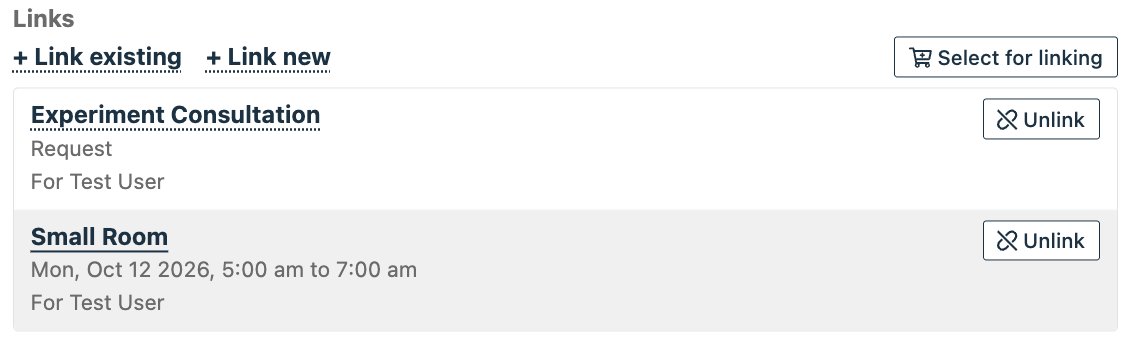
Find an existing reservation or request
- Open the reservation or request you want to link from.
- In Links, click + Link existing.
- Use the resource, user, or date filters to find the items you need. Turn off Filter by date or use Clear filters to broaden the results.
- Select the checkboxes beside the items you want to link, then click Link (the button shows how many items you selected).
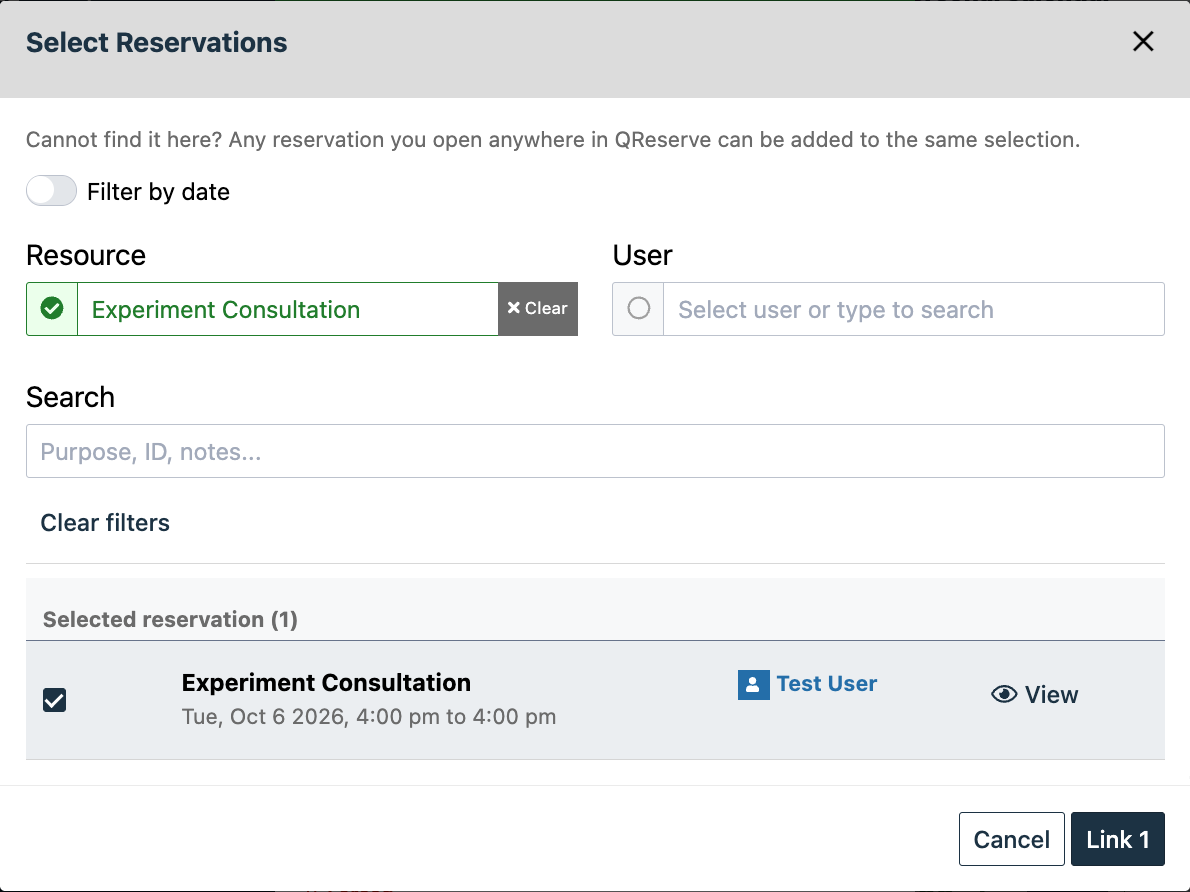
Use the filters to narrow the results, then select the items to link. Available search options depend on your permissions.
Gather items in your cart
Use the selection cart when you find related items in different places, such as a calendar or your requests list.
- Open an item and click Select for linking in its Links section. Repeat for other items you want to gather.
- Review your selections in the Selected reservations cart. Remove individual items or click Clear to start again. Selecting an item does not create a link yet.
- Open the reservation or request you want to connect them to and click + Link existing. Your eligible cart items are selected for you.
- Review the selection and click Link. Each selected item is linked to the item you have open.
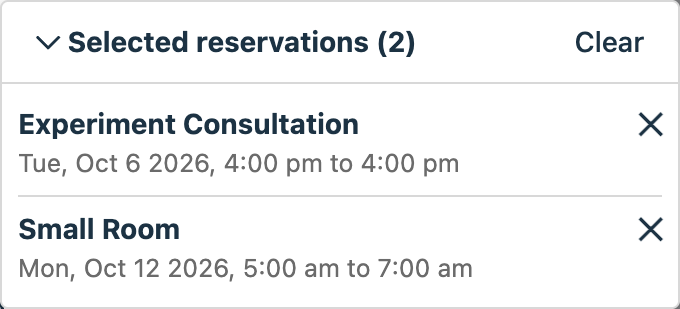
The cart keeps track of items you have selected while browsing.
Create a new linked item
If the related reservation or request does not exist yet, click + Link new in the Links section. Complete the booking or request as usual to create it and link it to the original item.
View or remove links
Open an item and look under Links to see its related reservations and requests. Click a linked item's name to open its details, where your access permits.
To remove a connection, click Unlink beside the item and confirm Remove Link. This removes the connection without cancelling either item.
For recurring reservations, you can link a single occurrence or the whole series. Check the scope shown in the selection or confirmation before continuing.
Site administrators can control access with Restrict reservation linking and the Reservation Linker role. See User Roles and Permissions for details.