Reservations
The Reservations tab under Site Settings allows administrators to dictate calendar display layouts, configure booking behaviors, customize email communications, and attach required forms across the site.
Display Options
Customize how resources, calendars, and timelines appear to your users.
- Sort Resources on Site Page and Timeline Views: Controls how your assets are ordered on the main site page and timeline calendars.
- Alphabetically (Natural): Sorts resources by name, though this can introduce a bias toward items starting earlier in the alphabet.
- Random: Chooses a completely random resource order every time the page loads.
- Sort Events on Monthly Site Calendar: Determines the order of bookings listed on the monthly calendar. It defaults to sorting by start time. You can switch this to sort by resource name first, then start time, though this can make day-to-day event comparisons more difficult as start times will not align visually.
- Restrict Views to Day Timeline: When enabled, calendar views are restricted to single-day timelines. This is highly useful for facilities with a high density of daily bookings. Administrators will still retain full access to weekly and monthly views.
- Default Site Wide Calendar View: Dictates the initial view layout a user sees every time a calendar loads. Individual resource calendars can override this baseline setting. If left unconfigured, the system will remember and default to the last view chosen by the user.
- Timeline and Day View Start/End Times: By default, timeline and day views display a full 24-hour block (00:00:00 to 24:00:00). You can restrict the calendar display window to your facility's operational hours by inputting custom times using the HH:MM:SS format.
- Default Date Instead of Today: Normally, the calendar opens to the current day. Toggle this on and select a static date if you are running an event around a specific timeframe and want everyone directed there automatically.
- Date Picker Start Label Override: By default, the first calendar date parameter field is labeled "Start". Enter a custom phrase here to override it.
- Date Picker End Label Override: The second date parameter field defaults to the label "End". Input a custom phrase here to alter it.
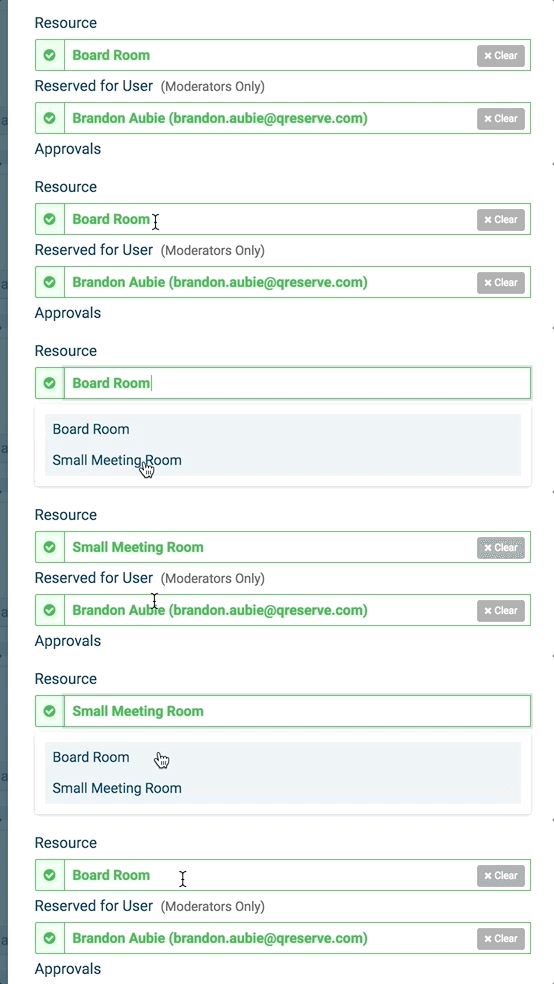
- Show Resource Images in Reservation Resource Picker: Toggle this option ON to display a thumbnail image of the resource directly within the dropdown selection menu when a user is picking their asset.
Reservation Options
Enforce booking criteria, approval workflows, and system constraints.
- Reservation Blockers Block by Units, not Absolutely: By default, an asset blocking another resource stops all booking permissions entirely, regardless of how many units are actually reserved. Enabling this option ensures a resource only blocks the specific number of units that have been explicitly reserved in the blocking resource.
- Example: A Microscopy Room with a maximum occupancy rule of 3 concurrent people contains 4 scopes, each set up individually. In the default mode (this toggle is off): Student A books Scope #1. The link triggers an absolute lock, immediately making Scopes #2, #3, and #4 unavailable. If the toggle is enabled: Student A, B, and C each book a scope, deducting 3 units from the room's capacity. Once the 3-person limit is reached, QReserve automatically blocks Scope #4 from being reserved, enforcing safety rules without manually locking out the whole room on the first booking.
- Approvers can Edit Reservations They Approve: Standard system architecture restricts reservation edits to moderators, administrators, or the original booking creator. When enabled, designated approvers are granted full permission to edit reservation details for any request they are tasked with approving.
- Cancel Reservation on Denied Approval Request: When an approver denies a pending request, the reservation is officially canceled. This ensures that changing a status to "Approved" later will not accidentally reactivate the reservation. For inventory-tracked resources or reservation templates, this setting automatically frees up and returns the items or templates back to the public pool upon denial.
- Force Users to Select From Stored Account Numbers: When enabled, users are restricted to picking billing information from their pre-defined account number list. If a user has no account numbers saved, a blank value will be applied. Administrators and moderators are exempt from this restriction and can always enter manual text.
- Hide Total Reservation Prices to Users: Activating this toggle hides the total calculated estimation of reservation costs across both the web interface and outbound emails. This is highly practical if final pricing isn't processed until a future date.
- Note: The underlying standalone rates used to calculate pricing (such as the per-hour rate) remain visible.
- Hide Account Number Field If User Has None Pre-Defined: Turn this setting ON to automatically remove the account number field from the booking window if a member does not have any saved billing codes on their profile.
- Hide Site Calendar for Everyone: For sprawling sites containing numerous assets, loading every reservation concurrently on one grand master calendar will degrade speed and usability. Enabling this hides the absolute master view entirely, guiding members to select and view specific resource calendars instead.
- Hide Site Calendar for Users Only: This functions identically to the option above, except it leaves the master site calendar accessible to administrators and moderators while keeping it hidden from regular site members.
- Allow Multi-Resource Reservations with Weekly Slots: When enabled, users can select and bundle multiple distinct resources into a single reservation block booked from weekly slots. This functions best when all chosen assets share identical weekly slot schedules; if the slots are misaligned, user experience may be affected.
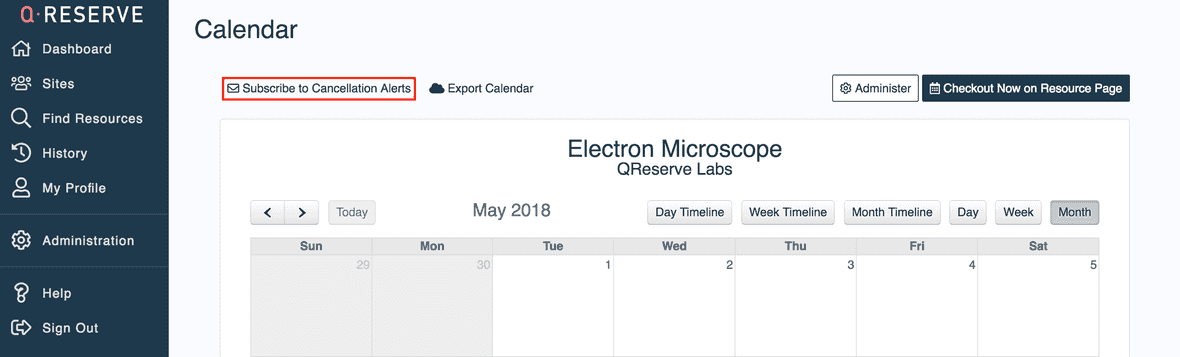
- Allow Resource and Site ICS Calendar Feeds: Grants permission for users to export resource or site calendars via an ICS link to sync with external software like Google Calendar or Microsoft Outlook. Disable this if you wish to prevent potential leaks of reservation information through shared external feeds.
- Default to Notifying User when Creating or Modifying Reservations/Requests of Others: When admins or moderators log, edit, or adjust an event on behalf of a regular user, they can opt to email that user a notification. This setting determines whether that notification toggle is turned ON or OFF by default in their management view.
- Require a Reason when Deleting a Reservation or Request: When turned on, the reason field cannot be left blank; administrators, moderators, or users must type an explanation prior to deleting any booking or request.
- Force Reservations to Happen One at a Time: Platform conflict checks execute the exact moment a booking is submitted. If two simultaneous requests hit the server within milliseconds of one another, a double booking can occur because neither transaction sees the other in time. Enabling this forces all reservation requests into a strict, single-file processing queue across the entire site, preventing scheduling overlaps. It is highly recommended to keep this setting enabled unless system speed degrades due to complex resource interactions.
Reservation Emails
Design communication paths and append customized text templates to automated alerts.
- Include a User's Personal QR Code in Emails: When active, a unique user identifier QR code is embedded into reservation emails, allowing seamless check-ins at kiosk terminals.
- Confirmation Email Message to Users: Text drafted in this field is automatically injected at the very top of all system-generated reservation confirmation emails across your facility.
- Reservation Confirmation Reply-To Email Address: Define a specific email address where all user replies to automated confirmation or update emails will be routed. If left blank, replies default to no address.
- Reservation Confirmation CC Email Address: Input an address to copy a specific administrative email on all reservation notifications. These emails are transmitted separately so that the primary booking requester cannot see this additional CC address.
- Loan Reminder Email Message to Users: Write a template message to be placed at the very top of all automated loan reminder and overdue resource emails generated by the site.
Reservation and Request Forms
- Attached Forms: Select and attach custom internal forms to your reservation workflow. You can click the Manage Site Forms button to build or modify custom fields. These are site-wide forms that will appear on every resource, and will appear at the start of a booking versus after like a resource-specific form.
- Example: a site-wide general safety form and rules that users must acknowledge prior to any reservation
- Order priority: Set a numerical value to establish the display ranking and sorting order of default information fields.
- Attached Maintenance Forms: Review or attach custom questionnaires specifically linked to equipment maintenance, logging, and asset service events. Note: A custom form must be created in the system first before it can be assigned here. These are site-wide forms that will appear on every resource, and appear when any maintenance booking is made.