
External Calendars
If you need to block a resource based on events on an external calendar that is internet accessible, QReserve provides a flexible and widely compatible way to automatically import external events on a regular basis.
External Calendar Overview
QReserve supports the import of an external calendar that is shared via an ics URL (iCal format). Events can be imported into a resource's calendar by adding that URL to the resource's External Integrations page.
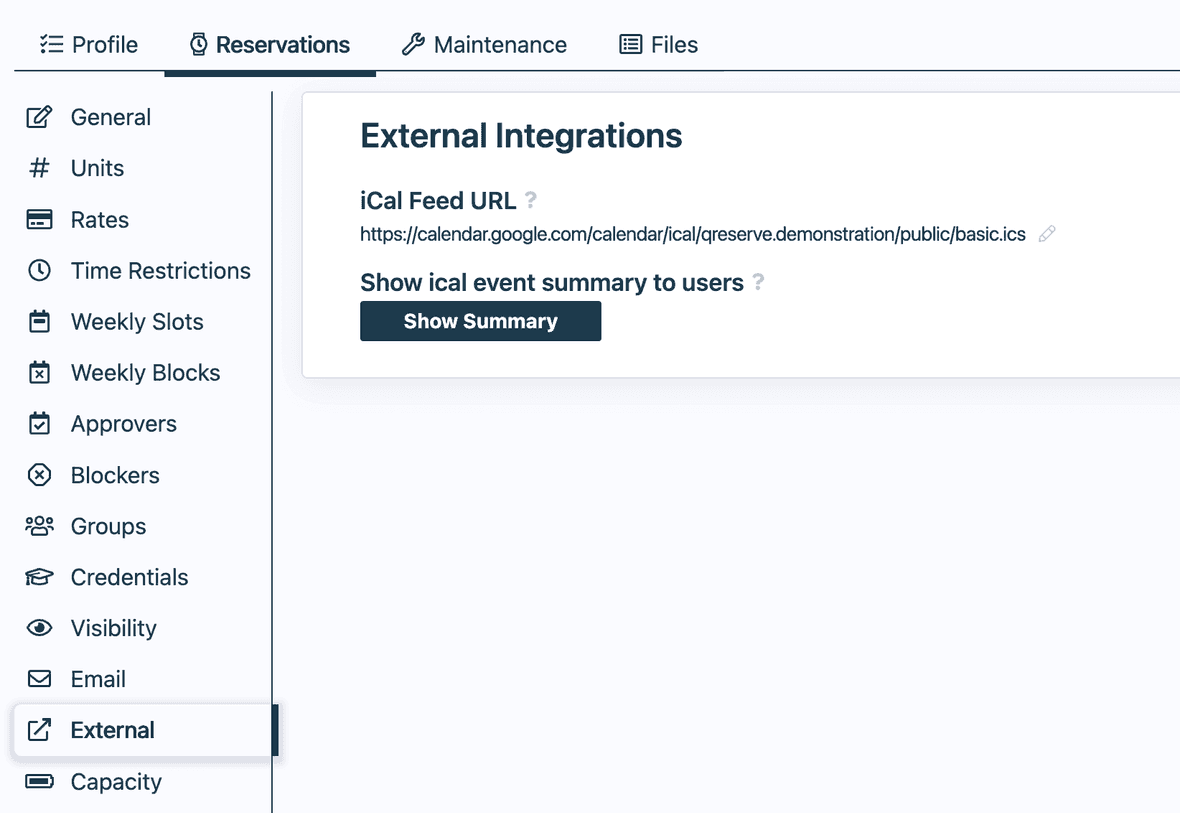
Most online calendar platforms will support this format including Google Calendar and Outlook. QReserve will attempt to pull new events once every 15 minutes and, if found, will have those events display on a resource's calendar and block that time from being scheduled. Externally pulled calendar events will block a resource absolutely regardless of the number of units that resource has.
Depending on whether or not your calendar feed contains a summary of events, you can choose whether or not to display that summary to users viewing these events.
Finding Your ICS URL
Google Calendar
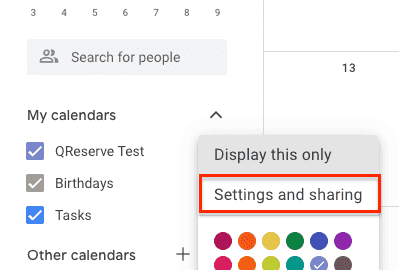
To import a calendar from Google Calendar, click the three dots next to a calendar name and select the Settings and Sharing option.
Then, scroll down to the bottom where both a Public and a Secret URL are provided. Note that the public URL will only work if your Google Calendar is marked as public higher up. In either case, the secret URL should be available and will work. Copy the desired URL and paste that into the iCal Feed URL property of a resource.
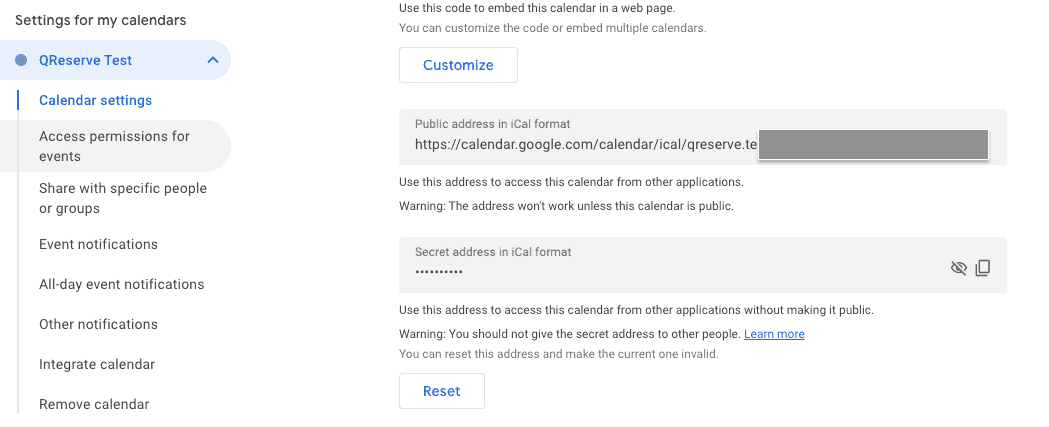
Note: After adding a URL, it may take up to 15-20 minutes for events from that feed to appear.
Outlook (Microsoft 365)
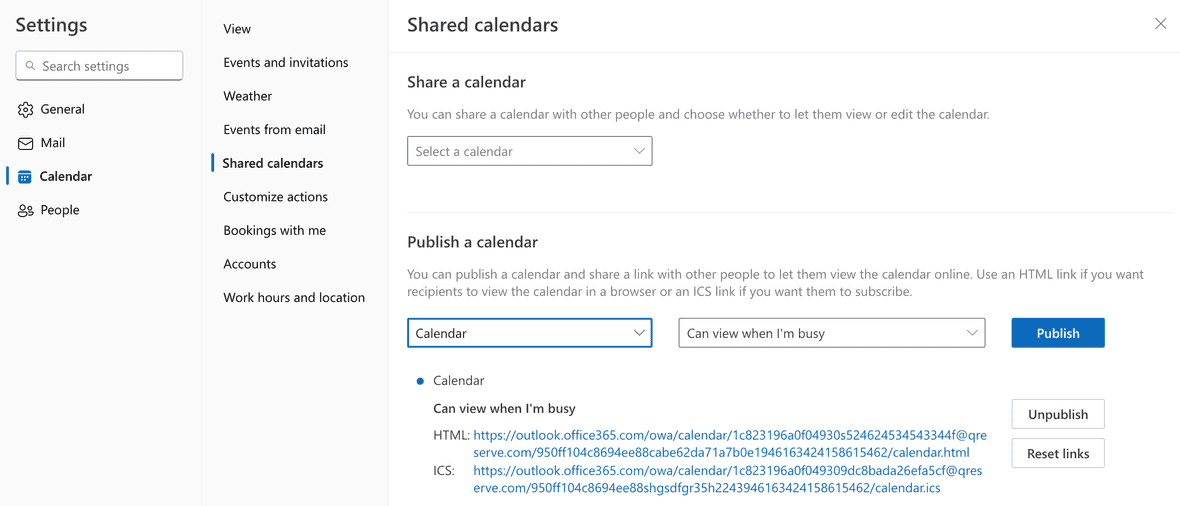
To import a calendar from Outlook (Microsoft 365), go to your calendar view and select the Gear icon in the top right corner. Then, under Shared calendars, select the calendar you wish to share, the detail to include, and then select Publish. This will give you an HTML and an ICS url. Copy the ICS URL and paste that into the iCal Feed URL Property of a resource.
Other Software
Any software with a public ICS URL should work so long as it is accessible to the QReserve servers. Some software allows you to download your calendar in ICS format but this file will not work as it needs to be a constantly updated URL that QReserve can query on a continuous basis to have the latest calendar event information.
Failed iCal Sync Notifications
QReserve will notify the resource contact, or a selected user, when an external iCal feed stops syncing for a resource. These notifications help you fix broken calendar links before imported events become stale or are removed.
Cooldown Periods
If an iCal feed URL fails for any reason it will enter into a cooldown period.
Situation | Timing | What Happens |
|---|---|---|
Normal feed sync | About every 15 minutes | QReserve checks the external calendar feed for updates. |
First failed sync | 2-hour cooldown | QReserve pauses retries for that feed URL and sends a failed-sync email. And audit log entry is recorded. |
Repeat same day failures | Attempts every 2 hours | QReserve avoids sending repeated standard failure emails for the same feed during the same day but will re-attempt to pull your feed every 2 hours. |
Continued failures | One additional email warning | QReserve sends a stronger warning that the feed will be removed unless fixed and will cease re-attempts until manually unpaused. |
Removal window | 7 days after first failure | The feed is paused for 7 days. Fix and unpause it before then to keep the imported calendar data active. |
What to Do When You Receive an Email
Read the email to identify the affected resource and feed URL.
If the email says the feed failed to sync:
- Open the resource in QReserve.
- Go to Reservations > External.
- Check the iCal Feed URL.
- Confirm the URL still works in the external calendar system.
- Replace expired, private, or incorrect URLs with a current iCal feed URL.
- Click Unpause if the feed is cooling down or paused.
If the email says the feed will be removed:
- Treat it as time-sensitive.
- Fix the feed URL or calendar permissions before the 7-day window ends.
- Return to Reservations > External.
- Click Unpause for the affected feed.
If the calendar is no longer needed, remove the URL from iCal Feed URL. This stops QReserve from trying to import that feed.
If you are not the right person to handle the feed, ask a site administrator to update Failed iCal Sync Notification User to the correct user.